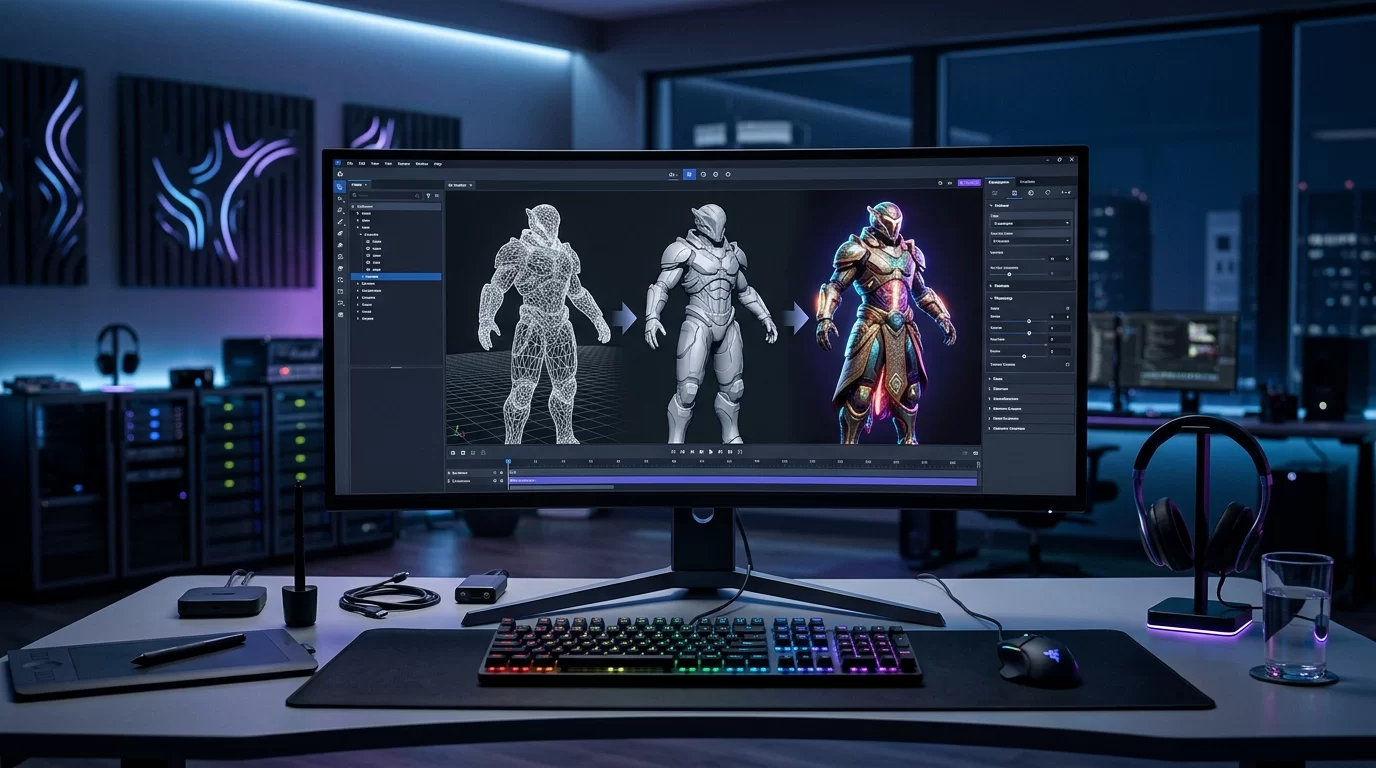
Creating three-dimensional assets has historically been one of the most technical and time-consuming phases of digital content creation. Traditional workflows require years of training in specialized software suites like Blender, Maya, or ZBrush, alongside deep technical knowledge of topology, UV unwrapping, and Physically Based Rendering (PBR) maps. Meshy AI enters this landscape as a specialized artificial intelligence platform designed to collapse those steep learning curves, enabling game developers, digital artists, and product designers to generate functional 3D models through plain text prompts and two-dimensional images.
What Is Meshy AI?
Meshy AI is an advanced generative AI platform built specifically for 3D asset generation and automated texturing. Rather than building 3D meshes manually vertex by vertex, creators can input natural language descriptions or upload existing concept art. Meshy then interprets the input and generates fully formed 3D wireframes complete with diffuse, normal, and roughness texture maps.
By leveraging deep learning models trained on vast datasets of 3D geometry and materials, Meshy translates spatial concepts into downloadable asset formats such as FBX, OBJ, GLTF, and USDZ. This makes it an ideal bridging tool for rapid prototyping, indie game production, concept visual modeling, and augmented reality (AR) asset creation.
Key Features of Meshy AI
Meshy offers a modular toolkit tailored to different stages of the asset pipeline. Understanding how these features function individually helps creators integrate them effectively into existing studio workflows.
1. Text-to-3D Generation
The Text-to-3D engine allows users to generate 3D objects purely from descriptive prompts. Similar to image generation models, writing detailed prompts yields higher precision. Users can specify style parameters—such as realistic, stylized, low-poly, or voxel—to ensure the generated asset matches the aesthetic direction of their project.
2. Image-to-3D Conversion
For artists who already have concept art, floor plans, or vector sketches, the Image-to-3D tool converts 2D illustrations into textured 3D objects. The AI evaluates depth cues, lighting, and object boundaries in the image to construct a 3D geometry that preserves the core proportions of the original art.
3. AI Texturing (Text-to-Texture)
One of the most impressive tools inside Meshy is its dedicated texturing module. If you already have an untextured 3D mesh (an OBJ or FBX file without materials), you can import it into Meshy and generate custom PBR materials using textual prompts. The system maps texture coordinates automatically, producing realistic surface details like rust, polished marble, weathered wood, or futuristic armor plating.
4. Retopology and Mesh Optimization
AI-generated 3D geometry often suffers from dense, irregular polygon distribution (frequently called dynamic mesh clutter). Meshy incorporates automated retopology features that clean up dense triangle meshes, converting them into cleaner quad-dominant structures with adjustable polygon budgets suitable for real-time game engines.
How to Use Meshy AI: Step-by-Step Guide
Starting with Meshy is straightforward, but achieving high-quality results requires a strategic approach to prompt writing and post-generation adjustment. Below is a practical guide to generating your first 3D asset using the platform.
Step 1: Account Setup and Navigation
Navigate to the official website and sign up using your preferred authentication method. Upon entering the web dashboard, you will find three primary generation tabs: Text to 3D, Image to 3D, and Text to Texture.
Step 2: Crafting a Text-to-3D Prompt
Select the Text to 3D tool. To get optimal results, structure your prompt around four key components: subject, material details, style, and lighting intent.
- Poor Prompt: "A fantasy sword"
- Optimized Prompt: "An ornate medieval broadsword with a glowing sapphire pommel, weathered steel blade, low-poly game asset style, clean geometry"
Adjust the generation settings, such as mesh polycount and seed values, then click Generate. Meshy typically produces a fast preview mesh in under a minute.
Step 3: Refining and Texturing
Once the initial preview is ready, review the geometry from all camera angles using the built-in 3D viewport. If the base shape looks correct, proceed to the high-resolution generation phase, where Meshy computes high-fidelity surface textures and refined vertex positions.
Step 4: Exporting Assets
After generation completes, click the Export button. Select the file format that aligns with your downstream software:
- FBX: Best for game engines like Unity and Unreal Engine, as well as general animation packages.
- GLTF / GLB: Ideal for web-based 3D applications, Three.js projects, and AR previews.
- OBJ: Great for universal compatibility across older 3D design tools.
- USDZ: Optimized for iOS augmented reality environments.
Integrating Meshy into Creative Pipelines
While Meshy can produce standalone models, its true power emerges when integrated alongside other creative tools and generative AI workflows.
Combining Large Language Models with Meshy
Generating highly detailed 3D prompts can sometimes be challenging. Many creators pair text-focused models like ChatGPT with Meshy to generate rich, descriptive texture prompts and structural descriptions. By asking an LLM to outline physical asset properties—such as material composition, wear patterns, and historical architectural references—you can paste complex prompt strings directly into Meshy for superior visual outputs.
Refining Geometry in Blender or Maya
While Meshy generates clean surface meshes, assets intended for complex skeletal animation (rigging) often benefit from a brief pass in Blender. Artists can import the Meshy FBX file, quickly adjust bone weights, fine-tune UV seams if necessary, and re-export the model directly into game engines like Unreal Engine 5 or Unity.
Pros and Cons of Meshy AI
Evaluating any AI tool requires understanding both its strengths and current performance limits.
Pros
- Exceptional Speed: Reduces initial asset draft times from hours to under two minutes.
- Intuitive UI: Browser-based interface requires zero installation or GPU setup on local hardware.
- PBR Map Output: Automatically outputs roughness, metallic, and normal maps, not just flat color textures.
- Multiple Export Formats: Seamless file conversion for immediate use in major game engines and 3D packages.
Cons
- Organic Rigging Challenges: Complex biological characters may require manual retopology before rigging for motion capture.
- Credit Consumption: High-resolution generations and repeated refinements consume platform credits quickly.
- Precision Limits: Specific dimension-critical CAD models (like mechanical engine parts) are better suited for parametric CAD software.
Troubleshooting Common Meshy AI Issues
If your generated 3D models exhibit artifacts or unexpected shapes, consider the following troubleshooting steps:
1. Inverted Normals or Visual Glitches
If surfaces appear dark or back-to-front inside your game engine, check the mesh normals. In Blender, select the model, enter Edit Mode, press Alt + N, and select Recalculate Outside to align surface directions.
2. Blurry Textures on Image-to-3D Generation
If converting a 2D image results in soft or distorted textures, ensure your source image has high contrast, a transparent or neutral background, and minimal motion blur. High-resolution PNGs with clear object silhouettes produce the cleanest 3D transformations.
3. High Polycount Causing Engine Stutter
If exported models slow down real-time viewports, lower the target polygon slider inside Meshy's generation panel prior to exporting, or apply a Decimate Modifier within Blender to reduce triangle count without losing surface detail.
Frequently Asked Questions
Is Meshy AI free to use?
Meshy provides a free tier with daily recurring credits, allowing creators to test features and generate basic 3D assets. Advanced features, higher resolution downloads, and commercial usage permissions are included with paid subscription tiers.
What file formats does Meshy support for export?
Meshy supports standard industry formats including FBX, OBJ, GLTF, GLB, and USDZ, alongside texture maps in PNG format.
Can models created with Meshy AI be used in commercial games?
Yes, assets created under paid subscription tiers include commercial licensing, allowing developers to sell, distribute, and embed models inside commercial software, games, and media projects.
Can I rig and animate Meshy 3D models?
Yes. Meshy outputs standard polygonal meshes. You can auto-rig characters using tools like Adobe Mixamo or manual armature rigs inside Blender, Maya, or Cinema 4D.